
Create separate user groups with limited access—POS (Point of Sale), Scanner, Supervisor & Manager (sub-organizers) Empower your event team to manage bookings, check-ins, ticket sales, and event operations efficiently and securely.
POS, Scanner, Supervisor and Manager are all sub-organizer roles with specific permissions. Organizers can create and assign sub-organizers to specific events, giving them access only to the events they manage. Each organizer can have their own sub-organizers for streamlined event operations.
The Manager role has more privileges than POS Supervisor and Scanner. Managers can perform all organizer actions on assigned events.
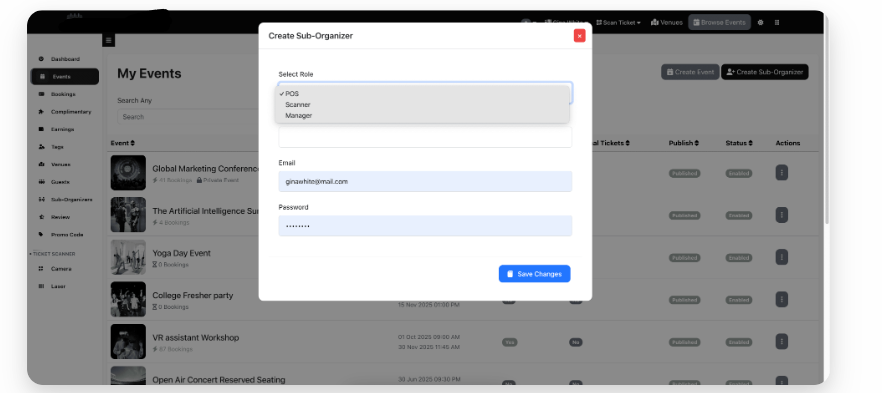
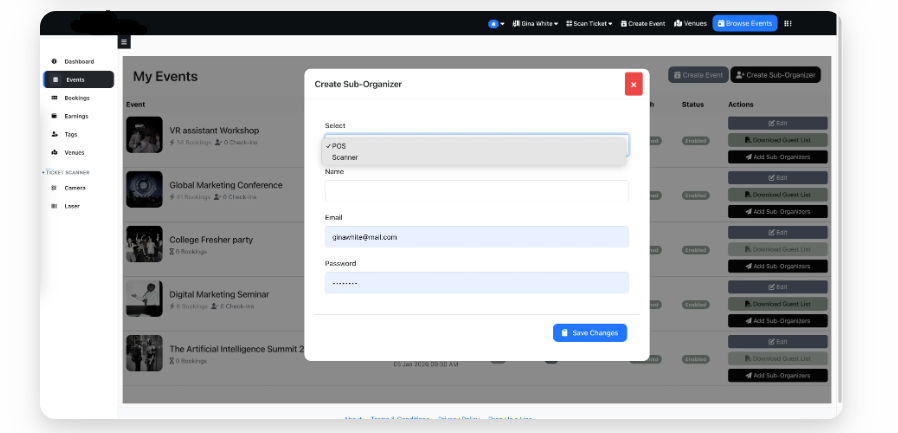
How to Create Sub-organizers (POS, Scanner, Supervisor and Manager) #
As Organizer:
- Go to Manage Events and click Create Sub-Organizer. Follow the same steps as above.
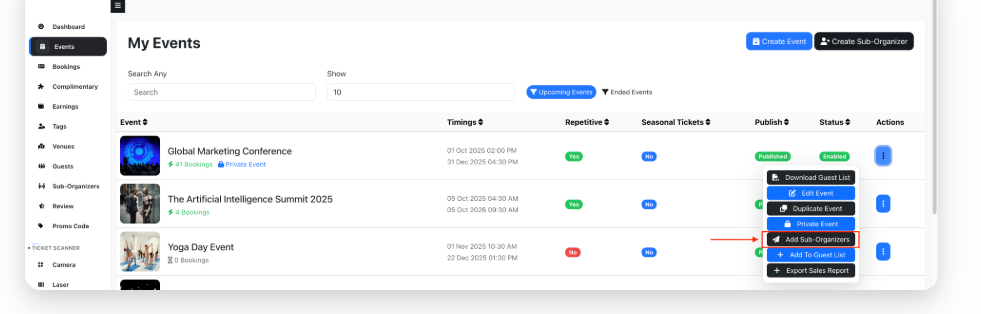
2. Manage sub-organizers from the Manage Sub-Organizers page.
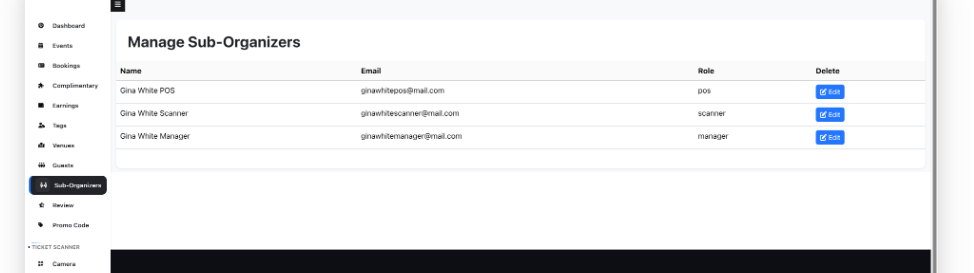
POS (Point of Sale) Role: Sell Tickets at the Event
POS users can make bookings and sell tickets on behalf of the Organizer at the event entrance. They can manage only the bookings they create, including changing payment status, enabling/disabling bookings, and processing cancellations or refunds.
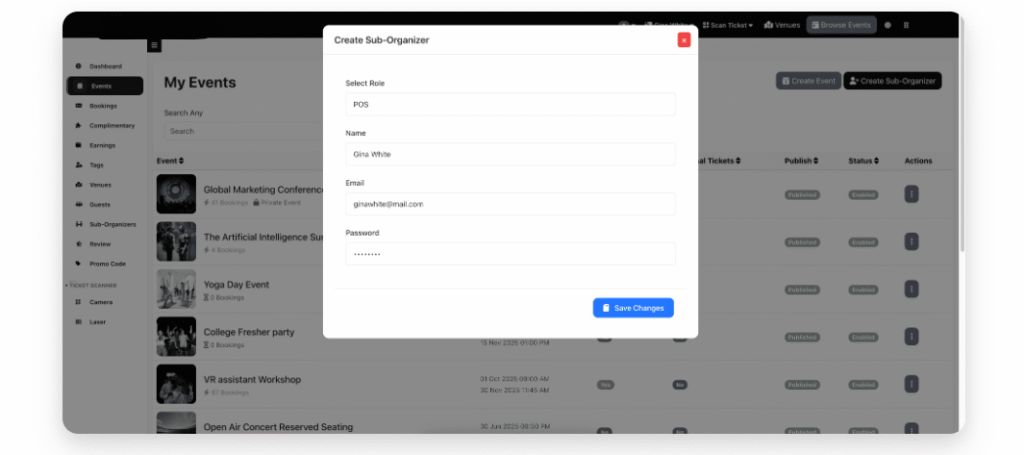
Assigning POS to an Event:
- Create a Sub-Organizer with the POS role.
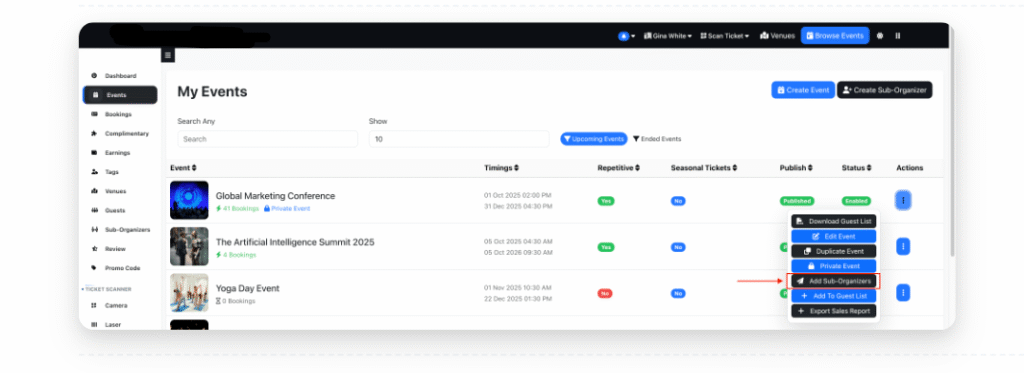
- Click Add Sub-organizers on the event you want to assign them to.
3. In the popup, select POS and click Save.
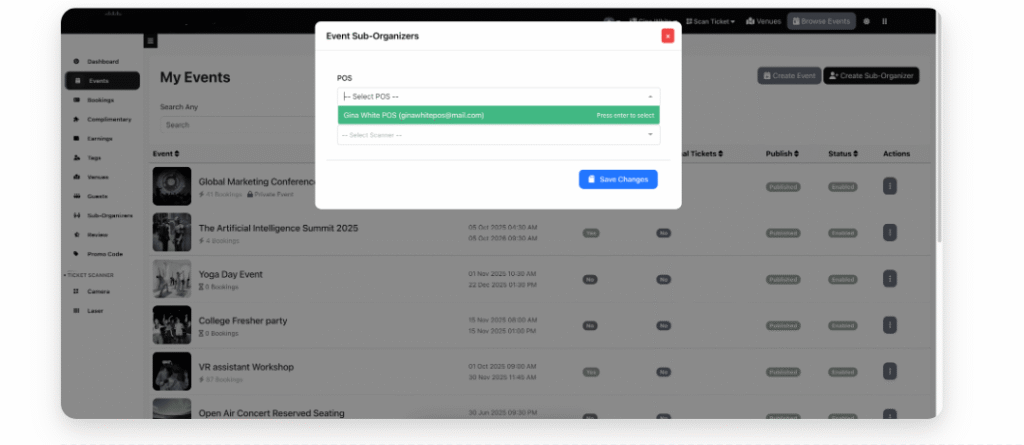
You can assign multiple POS users to each event. POS can only book tickets for events they are assigned to.
POS Booking Management:
- POS logs in with their email and password.
- POS sees only the events they are assigned to.
- POS can make bookings for customers by entering the customer’s email.
- POS can select the Offline payment method and collect payment offline or via other means.
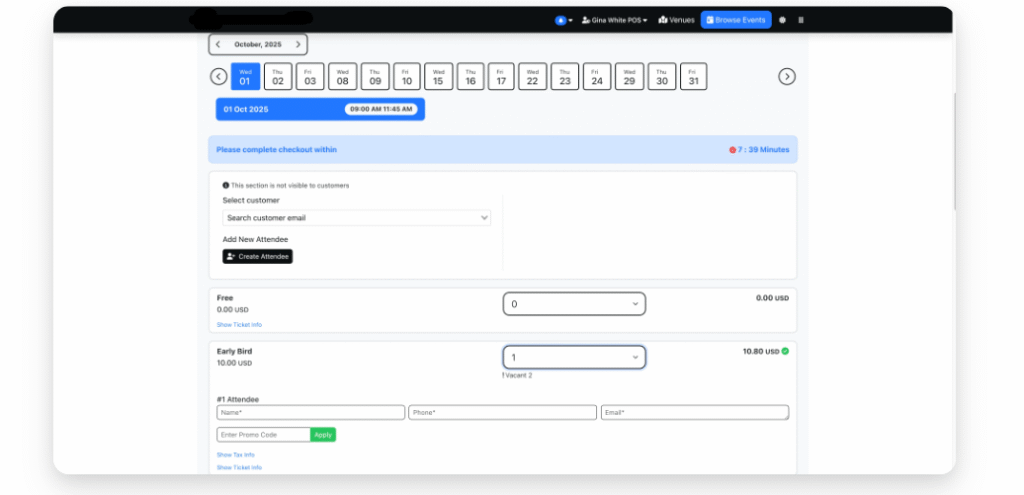
5. POS can manage all their bookings from the POS Bookings page.
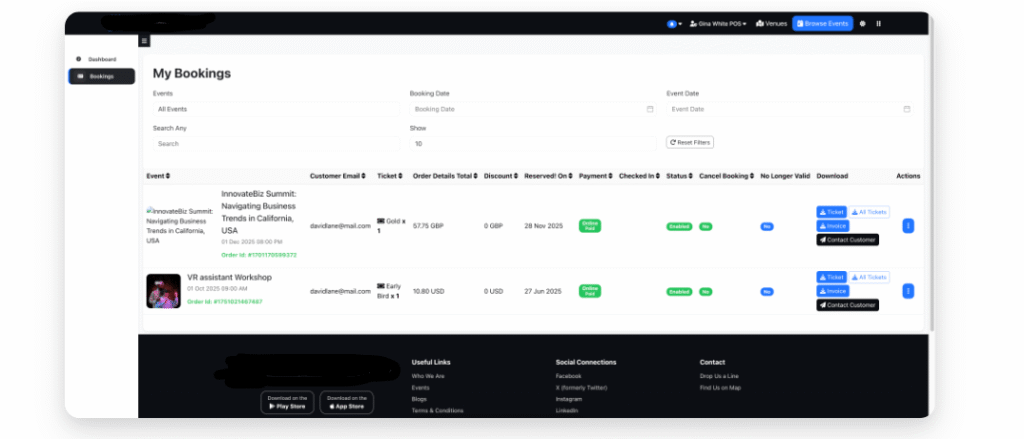
6. POS can also manage booking cancellations and refunds.
Ticket Scanner Role: Scan & Validate Event Tickets #
Scanners can scan tickets at the event entrance and view bookings for tickets they have scanned, helping manage event access and reporting.
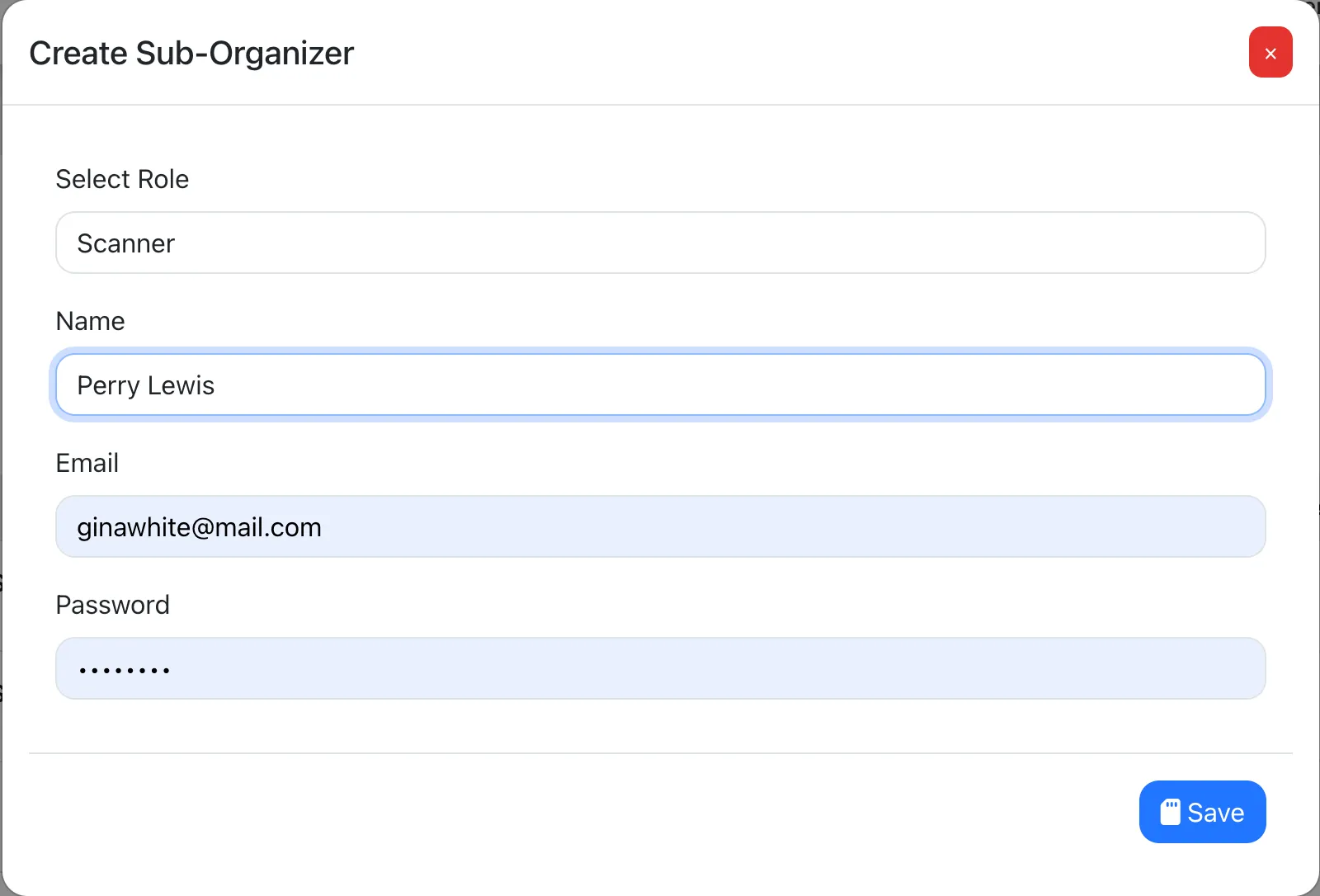
Assigning Scanner to an Event:
- Create a Sub-Organizer with the Scanner role.
- Click Add Sub-organizers on the event you want to assign them to.
- In the popup, select Scanner and click Save.
You can assign multiple Scanners to each event. Scanners can only scan tickets for events they are assigned to.
Scanner Booking Management:
- Scanner logs in with their email and password.
- Scanner can only scan tickets for assigned events.
- Scanner can view all bookings they have scanned from the Scanner Bookings page.
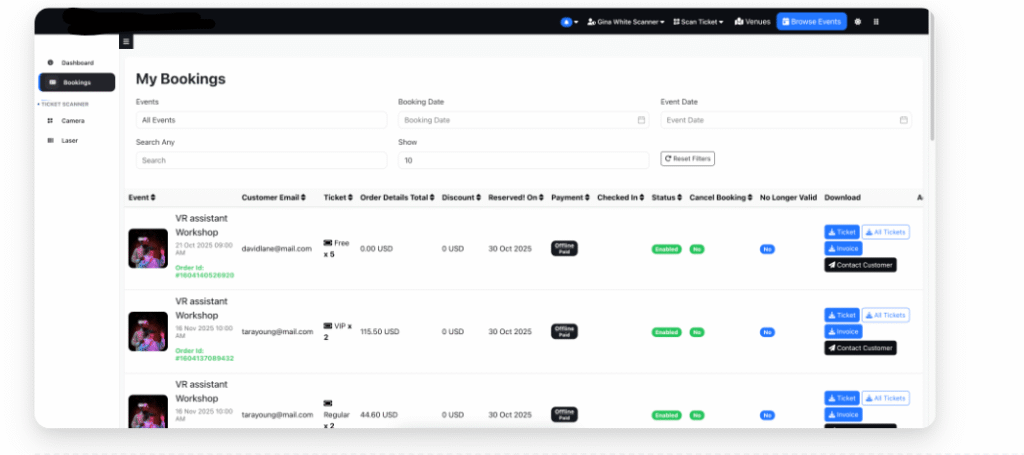
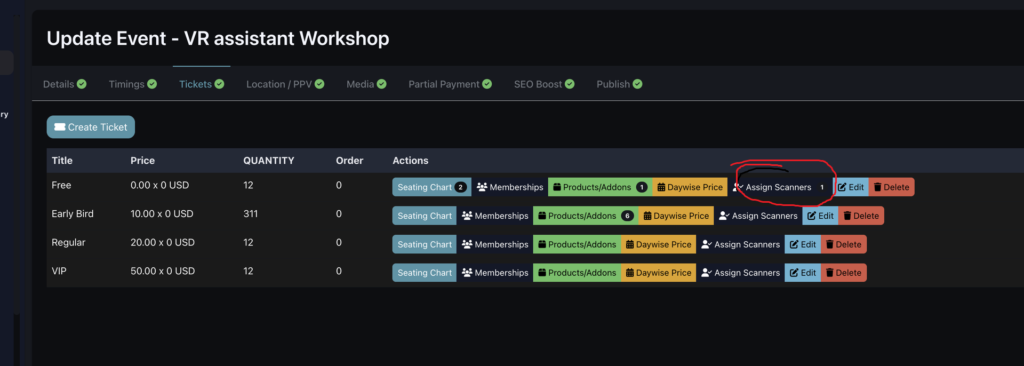
Adding Sub-organiser Scanner To Scan Only aspecific ticket bookings #
Scanners Appointed to a Ticket Type can only scan they tickets they appointed to making it easy for special event door access
Event Manager Role: Full Access Sub-Organizer #
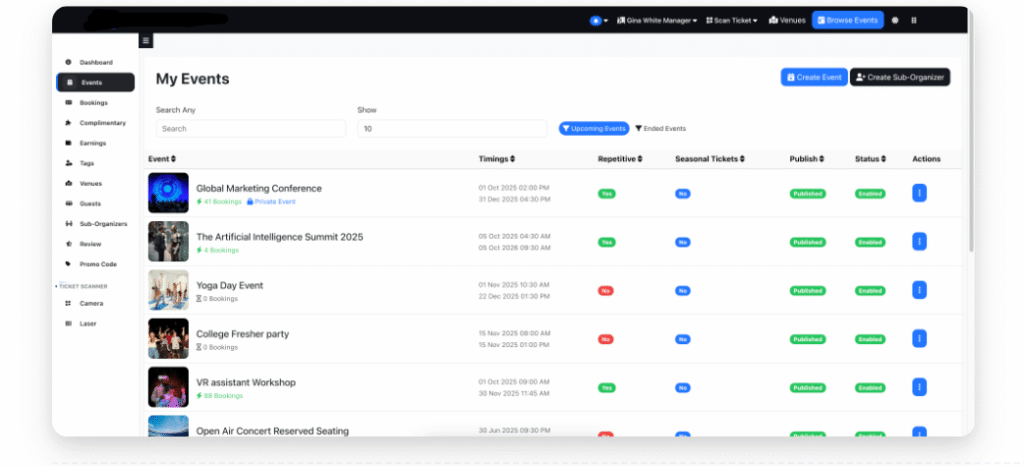
Managers have full access to all organizer features for assigned events. This unlimited access account allows managers to handle every aspect of event management on behalf of the organizer.
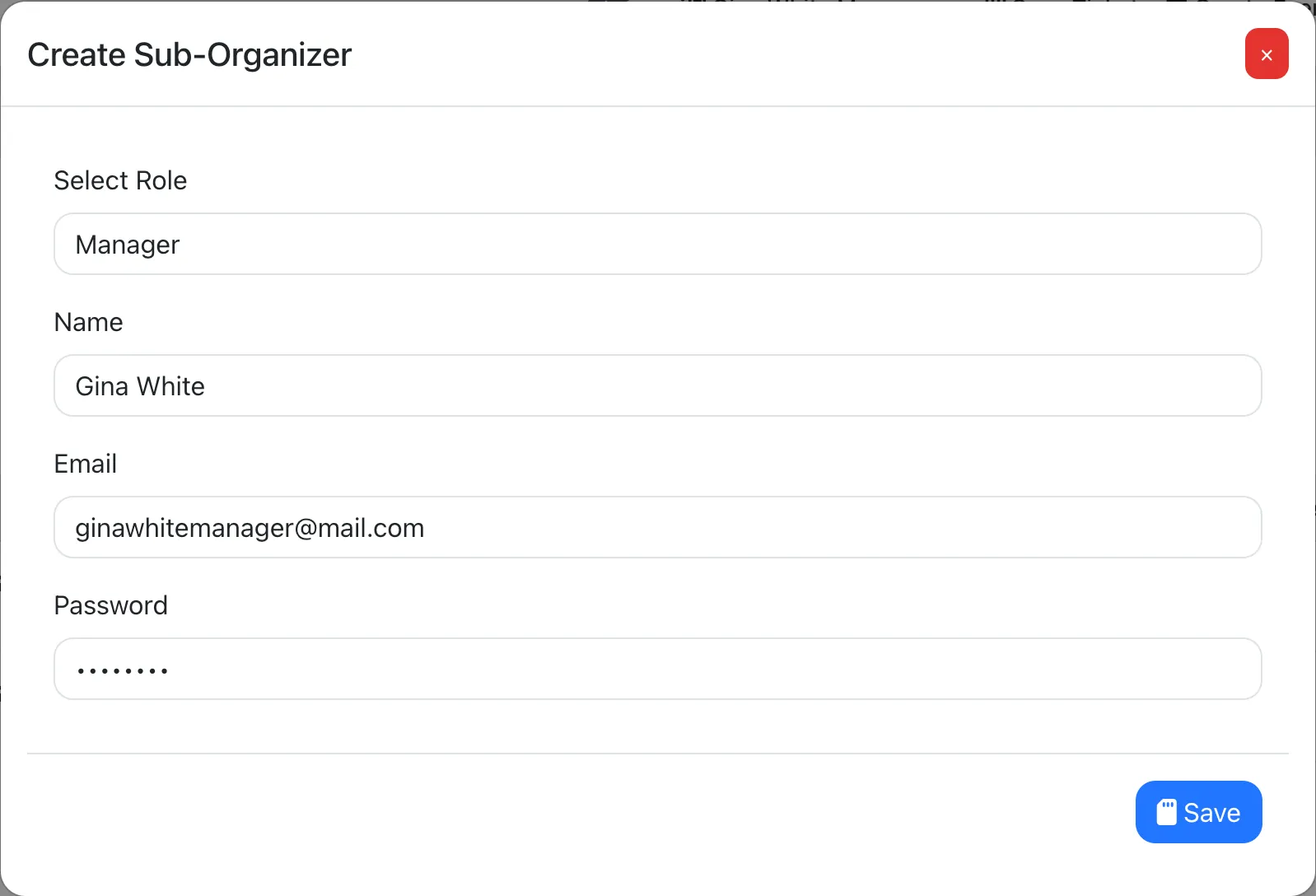
Organizers only need to create a Sub-Organizer with the Manager role—no need to assign them to specific events.
Managers can log in with their email and password and manage everything for the organizer.
Event Supervisor Role: #
With this role you will be able to assign Selected Events to supervisor, and then supervisor will be able to do these things only
- See and edit events assigned
- See bookings of the events assigned
- See complimentary bookings of the events assigned
- Will be able to make bookings of the events assigned
Moderators (Web) Role: #
this Moderator user role which specifically will handle the PPV feature, support ticket and chatting.
1 Create Moderators – Organizers can add moderators.
2 Moderator Permissions – Moderators manage chat + view stats only.


