
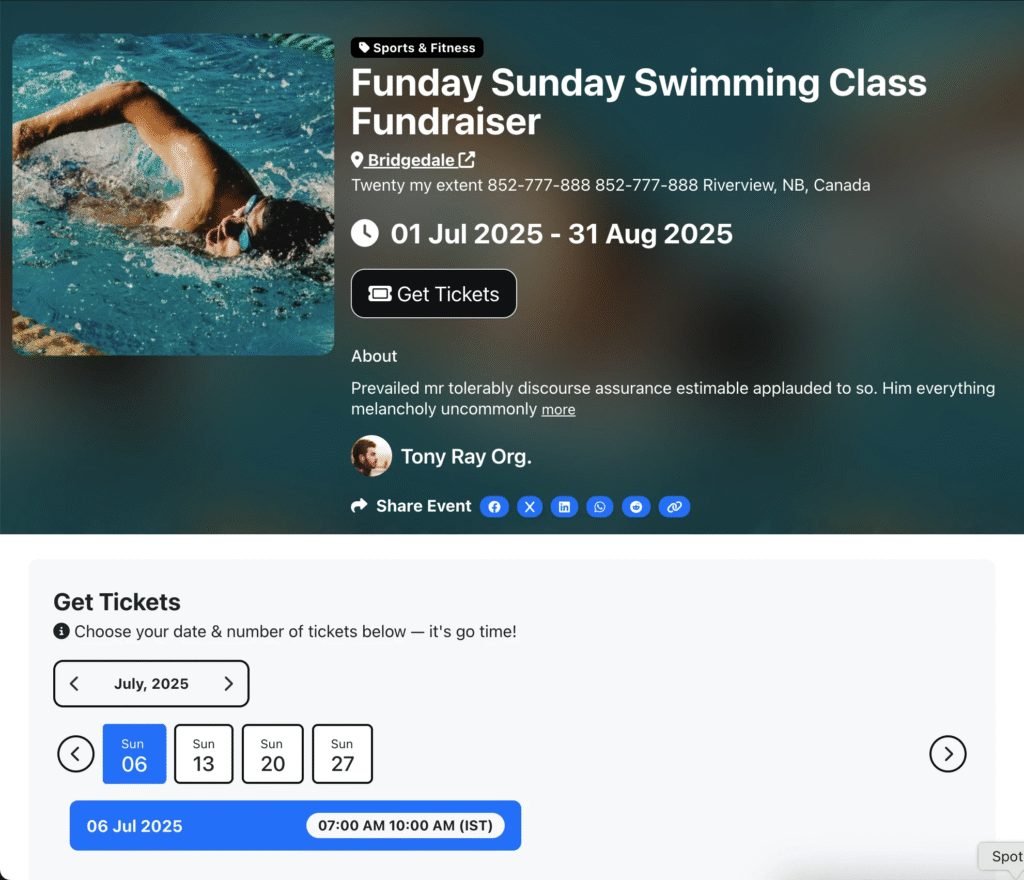
Effortlessly schedule and manage daily, weekly, or monthly recurring events with Wefete’s Repetitive Events feature. Perfect for fitness classes, educational courses, webinar series, and any event that repeats on a regular basis, this feature maximizes attendance, automates your workflow, and delivers a seamless experience for both organizers and attendees.
Why Use Repetitive Events? #
Repetitive Events are ideal for:
- Fitness & Wellness Classes: Yoga, pilates, bootcamps, and ongoing training sessions.
- Educational Courses: Weekly or monthly classes, workshops, or seminars.
- Webinar Series: Recurring online sessions for lead generation or community building.
- Community Meetups: Regular networking, hobby, or support group meetings.
- Corporate Training: Scheduled employee onboarding, compliance, or skills sessions.
- Religious Services: Weekly or monthly gatherings, study groups, or ceremonies.
- Kids Activities: Art, music, or sports classes with recurring schedules.
- Hybrid Events: In-person and online recurring events (if supported).
- Seasonal Events: Summer camps, after-school programs, or seasonal workshops.
Business Value & Key Benefits #
- Automate Scheduling: Set up once and let the system handle all future occurrences.
- Maximize Attendance: Flexible ticketing and payment options encourage repeat bookings.
- Reduce Admin Work: No need to manually create each session—save time and avoid errors.
- Seamless Integrations: Sync with calendars to enable reminders.
- Mobile & Global Ready: Fully responsive, multilingual, and accessible by design.
Timing #
Define the overall date and time range for your event, then enable Add Repetitive Schedules to unlock recurring options.
- Start/End Date & Time: Set the full range for your recurring event.
- Add Repetitive Schedules: Check this box to enable recurring event schedules.
Repetitive Schedule #
Select how often your event repeats:
Once you enable Add Repetitive Schedules, a new interface appears:
- Schedule rows are auto-generated based on the
Total Monthsbetween the start and end dates. - You can customize each schedule individually.
- Customers must purchase a ticket for every
dayby default. - Daily: Every day within the date range.
- Weekly: Specific weekdays (e.g., every Monday and Wednesday).
- Monthly: Specific dates each month (e.g., 1st and 15th).
- Skip Schedule: Leave the schedule input blank to skip that occurrence.
- Customize Each Occurrence: Adjust times or details for any session.
- Seasonal Tickets: Enable full-period payments for monthly or weekly schedules. In case of Seasonal Tickets, you can set a ticket price for the entire period. Then the customer will pay for the entire period at once. And customer will be able to checkin for all the sessions/days with the same ticket. The Ticket scanner will create seperate check-in entries for each session/day.
Repetitive Type: Daily #
Create events that repeat every day within your selected date range.
Settings
- Repetitive Dates (Exclude Dates) – Set dates to exclude from the schedule. Omit holidays or breaks
- Start Time – Set the start time for each month’s schedule.
- End Time – Set the end time for each month’s schedule.
Example: Daily Repetitive Schedules
How it appears on the Event page:
Repetitive Type: Weekly #
Create events that repeat every week within your selected date range.
Settings
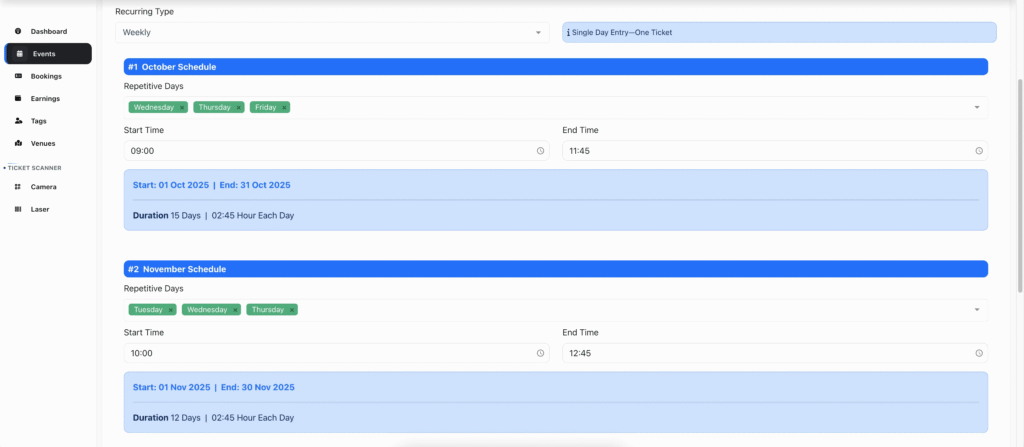
- Repetitive Days – Choose which days of the week the event repeats.
- Start Time – Set the start time for each month’s schedule.
- End Time – Set the end time for each month’s schedule.
Example: Weekly Repetitive Schedules
How it appears on the Event page:
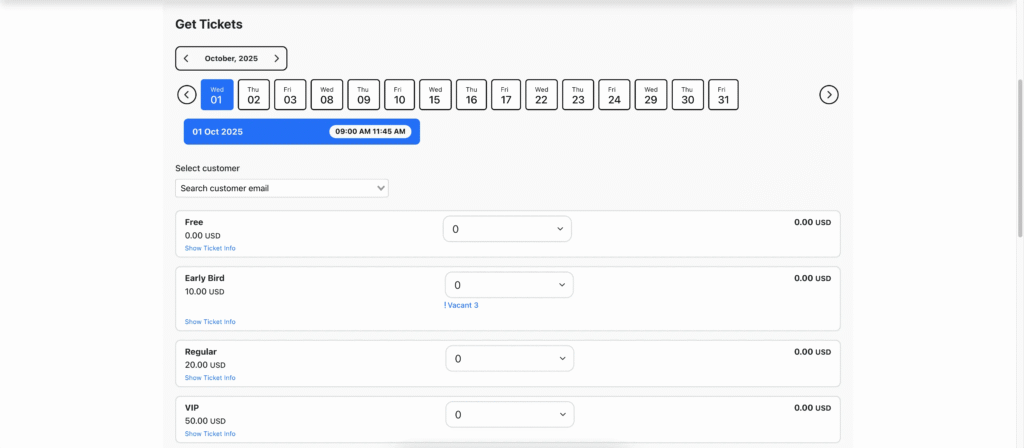
Repetitive Type: Monthly #
Create events that repeat every month within your selected date range.
Settings
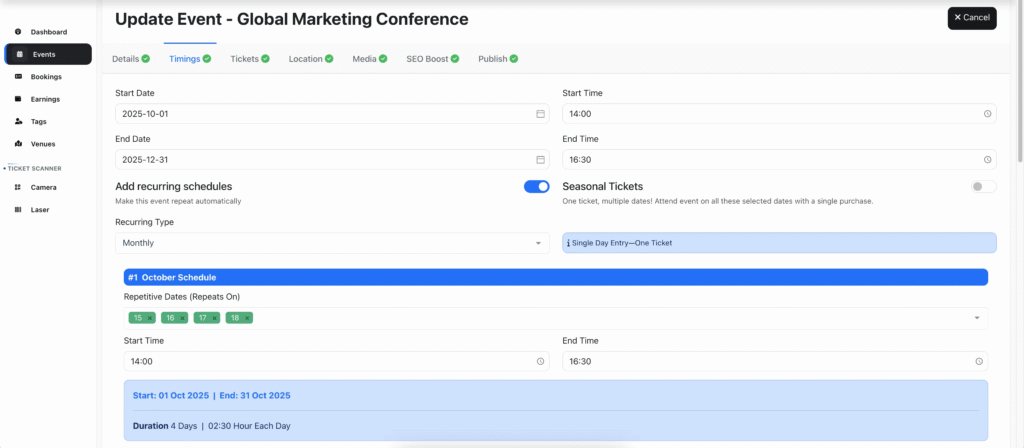
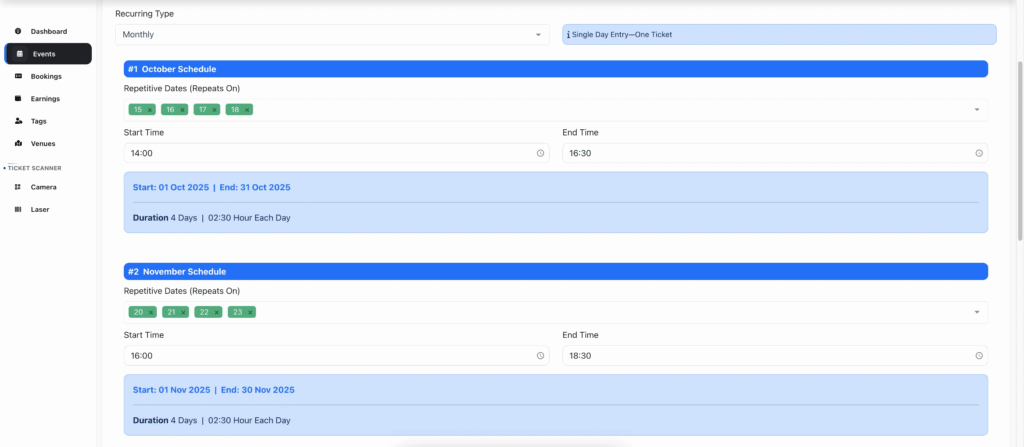
- Repetitive Dates (Repeat Every) – Set dates for the event to repeat each month. You can choose one or more dates per month.
- Start Time – Set the start time for each month’s schedule.
- End Time – Set the end time for each month’s schedule.
Example: Monthly Repetitive Schedules
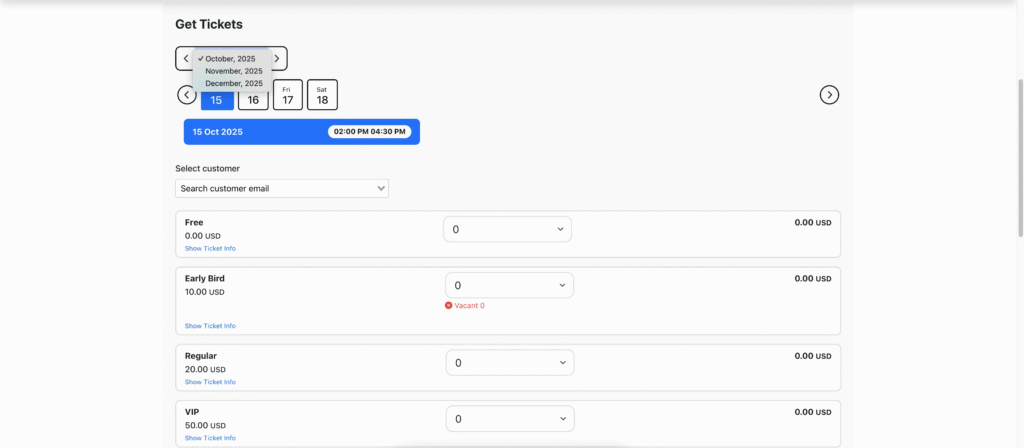
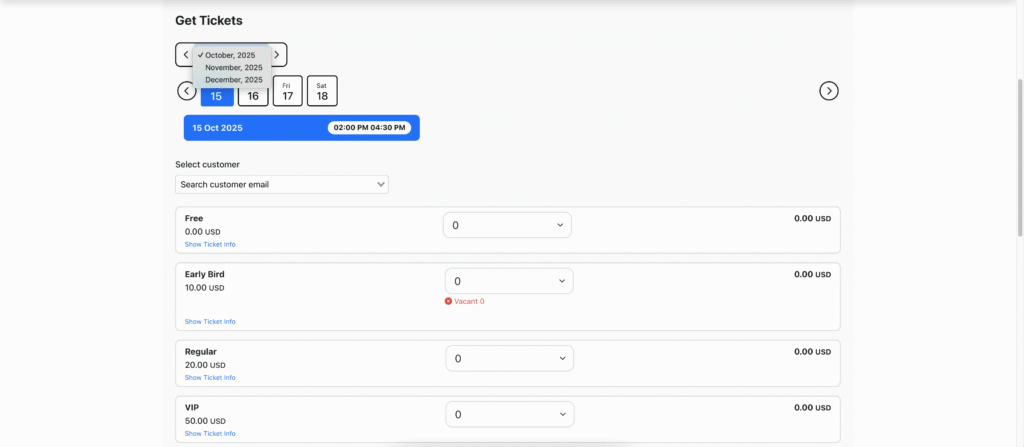
How it appears on the Event page:
Skip Schedule #
Skip a Month/Week/Day: Leave the specific schedule input blank to skip that occurrence.
Seasonal Tickets (Full-Period Payments) #
For recurring schedules, you can accept payments on a Monthly or Weekly basis, allowing customers to purchase all sessions for a period with a single ticket.
Seasonal Tickets allow customers to purchase all tickets for a month or week at once, enabling them to attend every session with a single ticket.
This means customers pay a Full Advance Payment for a complete month or week schedule, making it easier to manage recurring event payments.
- Seasonal Ticket: Check this box to enable full-period payments.
- Set Ticket Price: Price covers all sessions in the selected period.
- Full Advance Payment: Customers pay upfront for the entire month or
Timeslots Availability #
Easily check available timeslots for recurring event schedules. See if a timeslot is fully booked before proceeding to checkout.
- Live Timeslot Availability: See which sessions are fully booked in real time.
- Vacant Seats Display: Show available seats per ticket, protecting your inventory details.
In the Event Schedules, if all tickets for a specific timeslot/date are booked, that timeslot will display as Sold Out.
On the Checkout Popup, Vacant Seats are shown for each ticket if the Total Available Ticket Quantity is less than the Max Ticket Qty Limit Per Order (Admin Panel -> Settings -> Booking Tab -> Max Ticket Qty Limit Per Order). This ensures only limited ticket availability is displayed, protecting your inventory details.


